


- How to Set up an Instagram Page
- How to Create a Facebook Page using Facebook Business Manager
- What is the difference between a boosted post and an ad?
- Facebook Business Categories | How to Set Up Your Page
- How do I change a social media post?
- Why was my Instagram account disabled?
- When do Social Media Services start?
- Is my social media program successful?
- How do I get people to “like” my Facebook page?
- What is a “handle”?
- How do I change my handle?

- Franchise Advertising Onboarding Checklist
- Managed Service Menu (Corporate DSA Support)
- Which Advertising Channels are Supported?
- What to Expect – Ad Performance Review Calls
- Franchise Advertising | Frequently Asked Questions
- Ad Optimizations – What Does CyberMark Do?
- Lead Generation for Fitness 101
- Lead Generation for Salons 101
- Digital Advertising Benchmarks
- How CyberMark Partners With Brands
- Franchisor Guide: How to Manage Franchisee & Vendor Roles in Meta Business Manager
- Why is my phone number not on the ads?
- How CyberMark Uses Facebook Business Manager
- How to Add CyberMark as a Partner to Facebook Business Manager (Manual Process)

- How to Add CyberMark to Google Business Profile
- Digital Utilities Overview
- How to Onboard a New Location
- Why Is My Google Business Profile Not Showing Up?
- Local Listing Management – Overview
- Explainer Videos – CyberMark Digital Utilities Service
- Google My Business Overview
- What if I have a negative review for my business?
- What if I have a duplicate Google My Business?
- Why Was My Google Business Profile Suspended?
- Tips & Tricks For Google My Business
- How Do I Manage My Google My Business Listing?
- What are Local Listings?
- How Do Local Listings Help My Business?
- Can I delete negative reviews for my business?

Running effective ads on Google requires more than just a great campaign—it also means keeping your billing information accurate and up to date. Whether you’re an agency helping clients manage accounts or a business owner handling your own campaigns, knowing how to manage your payment method in Google Ads is essential.
Your Google Ads Payment Profile is where all billing and payment information is stored for your account. It includes your:
- Payment methods (credit card, bank account, etc.)
- Billing address
- Tax info (if applicable)
- Transaction history
Think of it as your billing control center—especially important if you manage multiple ad accounts under one organization.
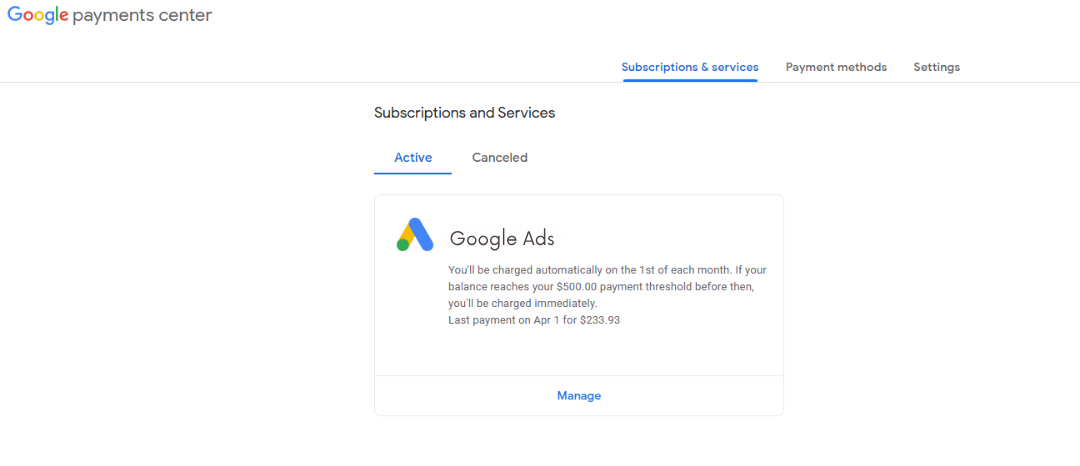
How to Create a Payments Profile
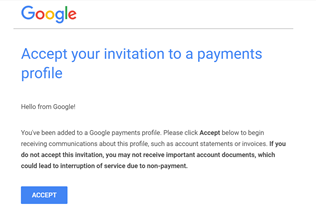
When your ad account is created, a payment profile is generated to pay for the ads. Note for CyberMark Clients: If CyberMark created the account, you’ll get an email from Google inviting you to manage the payment profile. If you created the account, you’ll need to add ourapps@cybermark.com as a user so that CyberMark can properly link the ad campaigns (instructions).
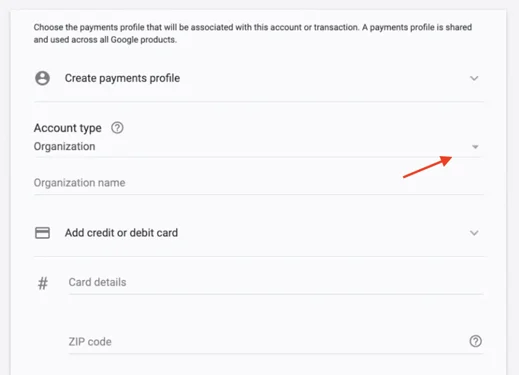
When you create a profile with some Google products and services, you’ll be asked whether it’s an “individual” or “business”
Important: For some business products, like Google Ads, you may find Account type = “Organization” instead of “Business.”
This setting can’t be changed. Make sure to choose the Business option if the payment method will be used for business ads.
- Business: Choose this setting if you’re paying on behalf of a business, organization, partnership, or educational institution.
How to Edit Payment Methods
Add a payment method
Tip: Your first payment method must be a credit or debit card. After you’ve added a card, you can add other payment methods, like bank accounts.
- Sign in to Payment Methods.
- At the bottom, clickAdd a payment method.
- Select the payment method you want to add.
- Follow the instructions to finish adding your payment method.
- If you’re asked to verify your payment method, choose an option from the list.
- Find and enter the verification code.
- Learn more about payment verification options.
Change or remove a payment method
- Sign in to Payment Methods.
- Next to the payment method you want to edit, click Edit.
- If you don’t find “Edit,” remove the payment method and add it again.
- To update an expired card:Next to the card, click Fix. Enter the month (MM), year (YY), and security code.