


- How to Set up an Instagram Page
- How to Create a Facebook Page using Facebook Business Manager
- What is the difference between a boosted post and an ad?
- Facebook Business Categories | How to Set Up Your Page
- How do I change a social media post?
- Why was my Instagram account disabled?
- When do Social Media Services start?
- Is my social media program successful?
- How do I get people to “like” my Facebook page?
- What is a “handle”?
- How do I change my handle?

- Franchise Advertising Onboarding Checklist
- Managed Service Menu (Corporate DSA Support)
- Which Advertising Channels are Supported?
- What to Expect – Ad Performance Review Calls
- Franchise Advertising | Frequently Asked Questions
- Ad Optimizations – What Does CyberMark Do?
- Lead Generation for Fitness 101
- Lead Generation for Salons 101
- Digital Advertising Benchmarks
- How CyberMark Partners With Brands
- Franchisor Guide: How to Manage Franchisee & Vendor Roles in Meta Business Manager
- Why is my phone number not on the ads?
- How CyberMark Uses Facebook Business Manager
- How to Add CyberMark as a Partner to Facebook Business Manager (Manual Process)

- How to Add CyberMark to Google Business Profile
- Digital Utilities Overview
- How to Onboard a New Location
- Why Is My Google Business Profile Not Showing Up?
- Local Listing Management – Overview
- Explainer Videos – CyberMark Digital Utilities Service
- Google My Business Overview
- What if I have a negative review for my business?
- What if I have a duplicate Google My Business?
- Why Was My Google Business Profile Suspended?
- Tips & Tricks For Google My Business
- How Do I Manage My Google My Business Listing?
- What are Local Listings?
- How Do Local Listings Help My Business?
- Can I delete negative reviews for my business?

Why is Google requiring verification?
Build trust, increase transparency, and get access to more features by completing advertiser verification. You’ll just need to complete a few tasks, such as answering a few questions about your organization. After getting verified, some of your info will appear in ad disclosures and the Ads Transparency Center, which provides context about an advertiser and their ads.
Google will require you to complete one or more tasks as part of advertiser verification.
Google Ads will notify you via an in-account notification or an email when you need to complete advertiser verification and what your deadline will be. When your account is selected for verification, some of your ads may be restricted. To resolve these issues and ensure your other ads continue to run, you’ll need to complete advertiser verification by the required timeline.
What documents are accepted for Google Advertiser Verification?
Organizations may be required to provide 2 different types of documentation for advertiser verification: organization registration documents and a government-issued photo ID from an authorized representative. Acceptable documents include:
Registration documents:
- Any document, notice, or letter either issued by the IRS or stamped by the IRS that states your Organization name. Some examples are CP575, 147C, CP299, 988, 937, 1050, 5822 etc.
- Forms submitted to the IRS will only be accepted if a copy of the form is available on the IRS website. Some examples are Forms 8871 and 990.
- Certificate of Business Incorporation issued by the state where you conduct business activities that states your Organization name
- Your most recent SEC filing (e.g., 10-K, 10-Q or 8-K forms) that state the Organization name
- Business credit reports that state your Organization name from Experian, Equifax, or TransUnion
Authorized representative’s government-issued photo ID:
- Passport
- State identification
- Driving license
- Permanent resident card or Green card
An authorized representative is an admin of the payments profile paying for the ads.
How to submit verification documents
✅ Step 1: Access the Verification Page
- Sign in to your Google Ads account.
- In the top right corner, click the Tools & Settings icon (🔧).
- Under the Billing section, select Advertiser verification.
- If prompted, click Start task to begin the verification process.
Note: If you haven’t received a notification about verification, you can still start the process by following the steps above.

📝 Step 2: Answer Questions About Your Organization
- Organization Type: Indicate whether you’re an individual or represent an organization.
- Ad Funding: Confirm that you’re funding the ads yourself (not through an agency).
- Business Details: Provide information about your organization, including:
- Name: Enter your business name exactly as it appears on your official documents.
- Products/Services: Describe the products or services you offer.
- Advertising Practices: Answer questions about your advertising methods and relationships with other organizations.
Tip: Ensure all information matches your official documents to avoid delays.

📄 Step 3: Prepare and Upload Required Documents
You’ll need to provide the following:
- Business Registration Document: Examples include IRS Form CP575, 147C, or 990.
- Government-Issued Photo ID: A clear, color copy of a valid ID (e.g., passport, driver’s license)
Ensure all documents are legible, current, and match the information provided in your Google Ads account.
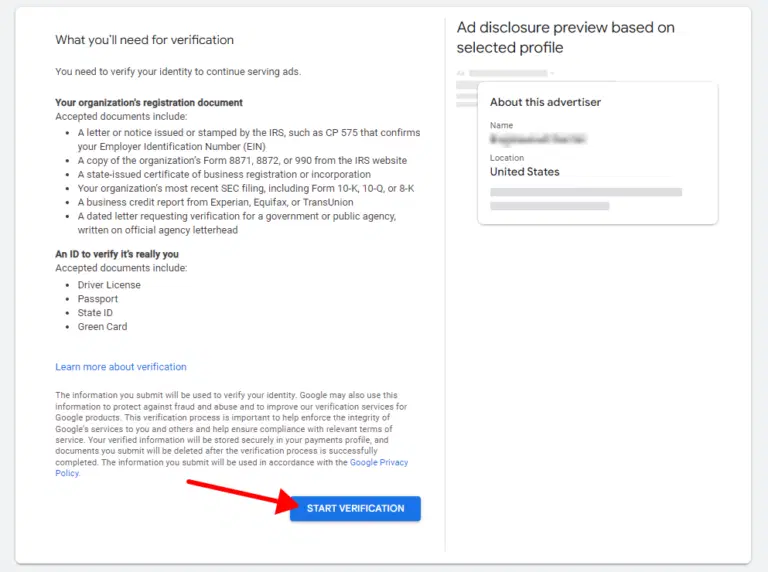
📍 Step 4: Confirm Your Business Address and Registration Number
- Enter your business address exactly as it appears on your official documents.
- Provide your business registration number, if applicable.
This information helps Google verify your business location and legitimacy.

🆔 Step 5: Upload Your ID
- Upload a government-issued photo ID.
- If the ID includes your address, ensure it matches the address provided in your Google Ads account.
This step is crucial for identity verification.
📝 Step 6: Review and Submit
- Double-check all entered information and uploaded documents for accuracy.
- Click Submit to send your verification request to Google.
Tip: Inaccurate or mismatched information can lead to delays or rejection.
⏳ Step 7: Wait for Verification
- Processing Time: Verification typically takes up to 5 business days.
- Notification: You’ll receive an email once your verification is complete.
- Ad Disclosures: After verification, your business name and location may appear in ad disclosures across Google services.
Note: If your verification is not approved, you’ll receive instructions on how to resolve any issues.
🛠️ Troubleshooting Tips
- Mismatched Information: If your documents don’t match the information in your Google Ads account, update your account details or contact Google Ads support.
- Document Issues: Ensure documents are clear, legible, and current. Avoid submitting expired or photocopied documents.
- Access Issues: If you’re unable to access the verification page, ensure you have the necessary permissions in your Google Ads account.
*If you are a new CyberMark client, you will have the opportunity to provide these documents in a secure intake form during the onboarding process.