


- How to Set up an Instagram Page
- How to Create a Facebook Page using Facebook Business Manager
- What is the difference between a boosted post and an ad?
- Facebook Business Categories | How to Set Up Your Page
- How do I change a social media post?
- Why was my Instagram account disabled?
- When do Social Media Services start?
- Is my social media program successful?
- How do I get people to “like” my Facebook page?
- What is a “handle”?
- How do I change my handle?

- Franchise Advertising Onboarding Checklist
- Managed Service Menu (Corporate DSA Support)
- Which Advertising Channels are Supported?
- What to Expect – Ad Performance Review Calls
- Franchise Advertising | Frequently Asked Questions
- Ad Optimizations – What Does CyberMark Do?
- Lead Generation for Fitness 101
- Lead Generation for Salons 101
- Digital Advertising Benchmarks
- How CyberMark Partners With Brands
- Franchisor Guide: How to Manage Franchisee & Vendor Roles in Meta Business Manager
- Why is my phone number not on the ads?
- How CyberMark Uses Facebook Business Manager
- How to Add CyberMark as a Partner to Facebook Business Manager (Manual Process)

- How to Add CyberMark to Google Business Profile
- Digital Utilities Overview
- How to Onboard a New Location
- Why Is My Google Business Profile Not Showing Up?
- Local Listing Management – Overview
- Explainer Videos – CyberMark Digital Utilities Service
- Google My Business Overview
- What if I have a negative review for my business?
- What if I have a duplicate Google My Business?
- Why Was My Google Business Profile Suspended?
- Tips & Tricks For Google My Business
- How Do I Manage My Google My Business Listing?
- What are Local Listings?
- How Do Local Listings Help My Business?
- Can I delete negative reviews for my business?

While the CyberMark Lead Portal automatically tracks calls, forms, chats, and other lead types, there may be times when you need to enter a lead manually. This guide walks you through adding a manual lead and choosing the appropriate settings along the way.
Step 1: Open the Manual Lead Entry Window
From your CyberMark Lead Portal dashboard, click the “+” icon located above your lead table.
This opens the Add Lead popup window.
Step 2: Select Lead Type & Initial Details
The first popup window allows you to define the basics of your new lead:
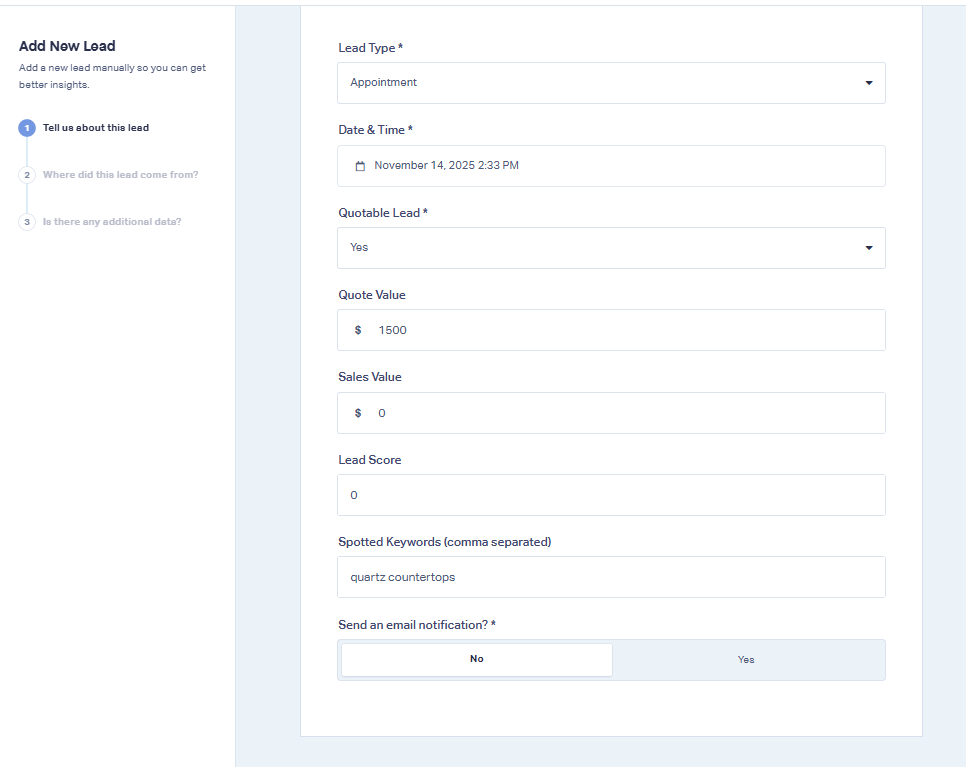
1. Lead Type
Choose what kind of lead you’re creating, such as:
- Appointment
- Phone call
- Transaction
- Other lead types relevant to your business
2. Date & Time
Select when the lead occurred. You can backdate the lead if needed.
3. Quotable Status
Choose:
- Quotable – The lead is eligible for quoting
- Non-quotable – The lead is invalid or not relevant for a quote
4. Quote or Sales Value (Optional)
If you know the initial quote or sales value, enter it here. If not, you can leave it blank and update it later.
5. Lead Score (Optional)
If your team uses lead scoring, you may enter a numeric score. If not, leave this field empty.
6. Keywords & Form Name
These fields are not needed for manual entries. Leave both blank.
7. Notification Option
Select whether you want to trigger a notification for this lead as though it were received normally.
When finished, click Next.
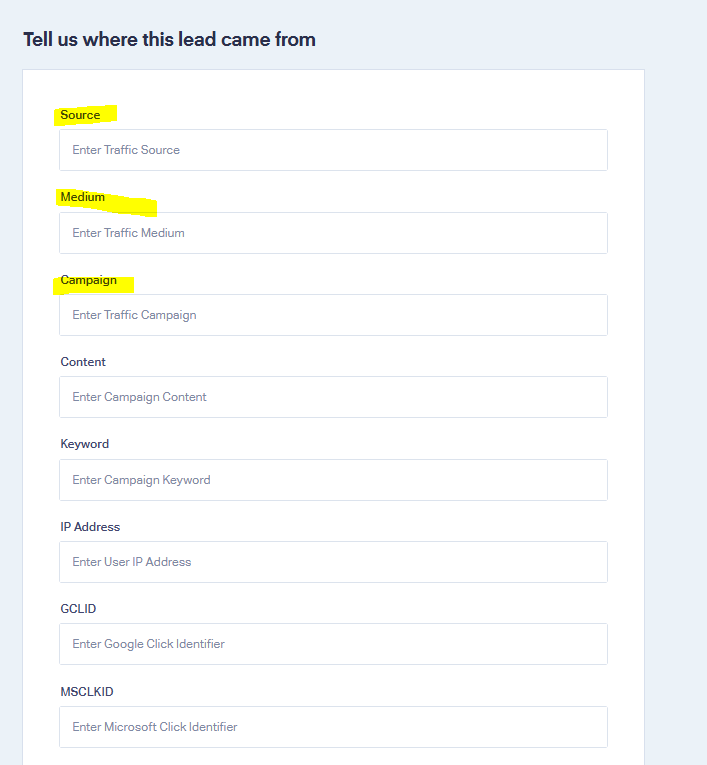
Step 3: Add Marketing Source Details
The next window lets you enter information about how the lead originated.
The Source and Medium fields are the most important, but everything else is optional.
Source
This identifies where the lead came from. Examples:
- Walk-in
- Designer tool
- Referral
- Google Search
- Print Ad
Tip:
Ask the customer, “How did you hear about us?” Place their answer in the Source field.
Medium
This identifies how the lead reached you. Examples:
- Offline
- Organic
- CPC
- Social
- Referral
Additional Tips for Choosing Source & Medium
If they walked into your store, you might use:
- Source: Walk-in
- Medium: Offline
If they used a designer tool on your website:
- Source: Designer Tool
- Medium: Organic or Website
If a contractor or partner referred them:
- Source: Referral
- Medium: Offline or Partner
There’s no wrong way to tag your sources—just choose what makes the most sense for your internal reporting. These fields are for internal use only.
Once complete, click Next.

Step 4: Add Additional Lead Data (Custom Fields)
The final screen allows you to enter any extra information about the lead using custom fields.
To add details:
- Type a Field Name (for example: Contact Name).
- Enter the corresponding Value (for example: John Smith).
- Repeat as needed.
Recommended Fields
- Contact Name
- Phone Number
- Email Address
- Address (optional)
- Notes or Description
- Any additional information your team finds useful
These fields help ensure all critical lead information appears clearly in your portal.
When finished, click Add to save the lead.
Your Lead Is Now Added!
You will see your newly created lead appear in the CyberMark Lead Portal with the rest of your tracked leads.