


- How to Set up an Instagram Page
- How to Create a Facebook Page using Facebook Business Manager
- What is the difference between a boosted post and an ad?
- Facebook Business Categories | How to Set Up Your Page
- How do I change a social media post?
- Why was my Instagram account disabled?
- When do Social Media Services start?
- Is my social media program successful?
- How do I get people to “like” my Facebook page?
- What is a “handle”?
- How do I change my handle?

- Franchise Advertising Onboarding Checklist
- Managed Service Menu (Corporate DSA Support)
- Which Advertising Channels are Supported?
- What to Expect – Ad Performance Review Calls
- Franchise Advertising | Frequently Asked Questions
- Ad Optimizations – What Does CyberMark Do?
- Lead Generation for Fitness 101
- Lead Generation for Salons 101
- Digital Advertising Benchmarks
- How CyberMark Partners With Brands
- Franchisor Guide: How to Manage Franchisee & Vendor Roles in Meta Business Manager
- Why is my phone number not on the ads?
- How CyberMark Uses Facebook Business Manager
- How to Add CyberMark as a Partner to Facebook Business Manager (Manual Process)

- How to Add CyberMark to Google Business Profile
- Digital Utilities Overview
- How to Onboard a New Location
- Why Is My Google Business Profile Not Showing Up?
- Local Listing Management – Overview
- Explainer Videos – CyberMark Digital Utilities Service
- Google My Business Overview
- What if I have a negative review for my business?
- What if I have a duplicate Google My Business?
- Why Was My Google Business Profile Suspended?
- Tips & Tricks For Google My Business
- How Do I Manage My Google My Business Listing?
- What are Local Listings?
- How Do Local Listings Help My Business?
- Can I delete negative reviews for my business?

Note: this article is for CyberMark clients who need to provide access. Looking for Facebook Advertising Services? Click here to see pricing and packages.
Before our team can optimize your Facebook page (or use it for ads), you will need to complete a few steps. These steps will ensure that your business retains ownership of the social media profiles. This article will explain how to create an Instagram page for your business and link it to Facebook Business Manager. For a comprehensive checklist to setting everything from pages to ad accounts up, click here to download our Facebook Business Manager Guide.
Create the Business Login
From either your mobile phone or a desktop computer, visit https://www.instagram.com/
- Complete the following information:
a. Mobile Number or Email: your business email address
b. Full Name: [Your Company Name]
c. Username: @yourcompanyname
d. Password: choose a secure password that you will remember
e. Click “Sign Up” - Select “Edit Profile”
- Complete your profile information as demonstrated below and click “Submit” to save:
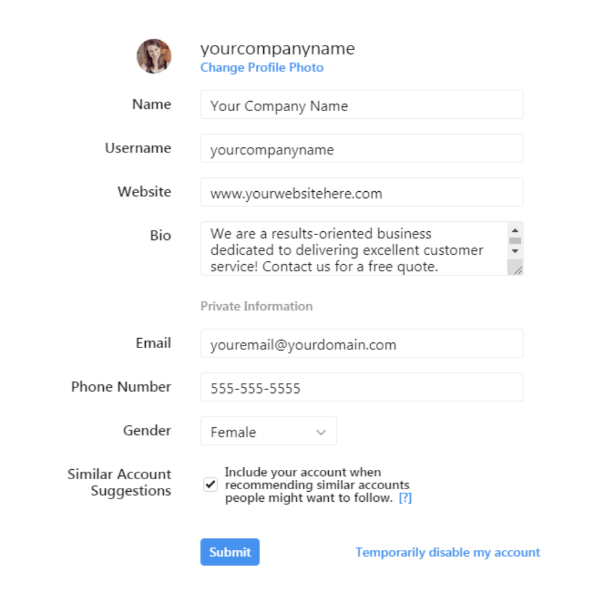
- Upload your company logo as your profile photo
- Include a short company bio (under 150 characters).
- Remember to confirm your email and phone number to manage Instagram
Connect to Facebook/Converting to a Business Account
- From your Facebook business page, select “Settings”
- Choose “Instagram” from the left-hand menu
- Click “Log in”
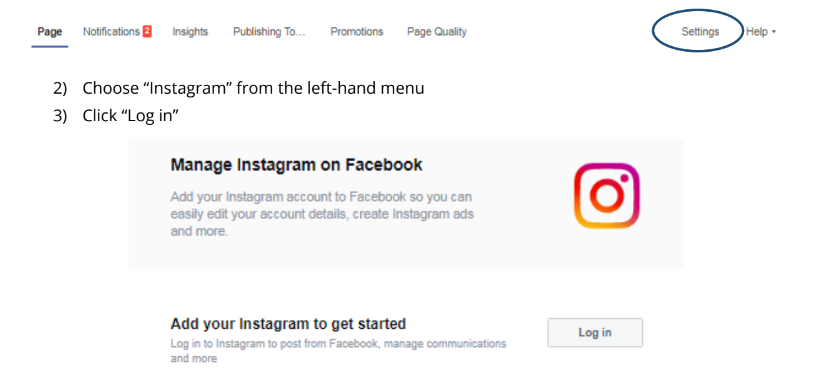
- If Facebook Interfaces requests authorization to proceed, select “Authorize”
- Enter your username and password
- When prompted to convert your profile to a business account, accept and click “Next”
Add Instagram to Facebook Business Manager and share access
To add an Instagram business account to your Business Manager, you must have the username and password for the account.
- Go to Business settings.
- Click Accounts.
- Click Instagram accounts.
- Click the blue Add button.
- Click Connect your Instagram account
- Enter your Instagram username and password. Note: We may send you a security code to the email or phone number associated with the account to verify your identity.
- You’ll have the option to select the ad accounts and pages you’d like to assign on the next screen. Assign your business Facebook page, and if you have an ad account, you can assign that as well. Click Finish. You can also click the X to skip this step.
- Click 💼Assign Partners and select Business ID. Paste in this ID: 10153479623514564. Toggle all of the options to “On.”